

The Explore tab in Fortuno Terminal brings together everything you need to follow the markets: the latest news, an economic calendar, trending instruments, market sentiment and the day’s biggest movers.
1. Open the Explore tab
Log in to Fortuno Terminal and click Explore at the top of the screen.
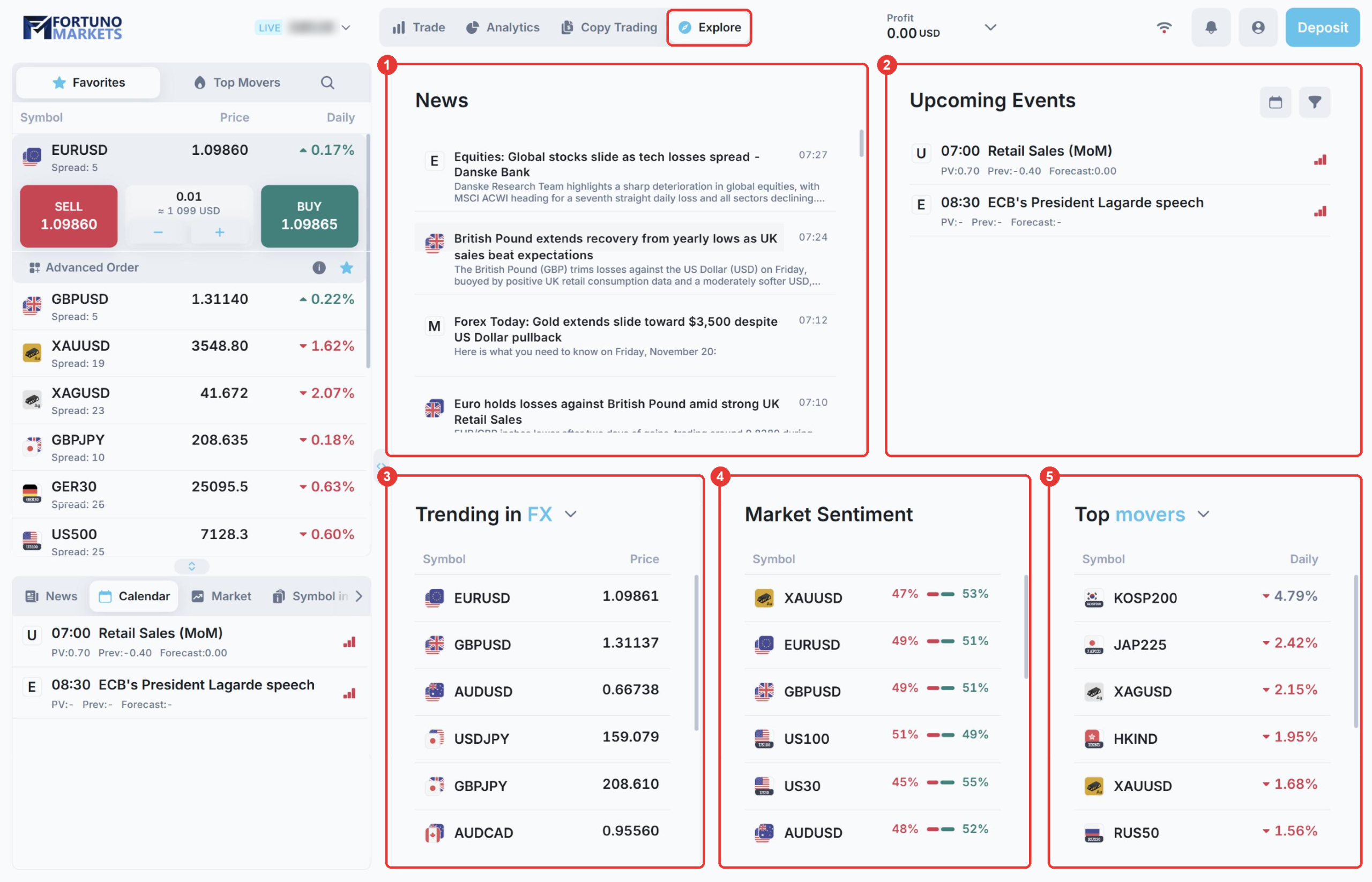
- (1) News: the latest market news.
- (2) Upcoming Events: the economic calendar.
- (3) Trending: the most popular instruments.
- (4) Market Sentiment: how traders are positioned on each instrument.
- (5) Top movers: the instruments that have moved the most today.
2. News
The News panel shows the latest market news, newest first, with the time it was published. Scroll down the panel to read older stories. News is also available in the News tab of the panel at the bottom left of the Trade screen.
3. Economic calendar (Upcoming Events)
The economic calendar lists scheduled events that can move the markets, such as economic data releases and speeches by central bank officials. Each event shows:
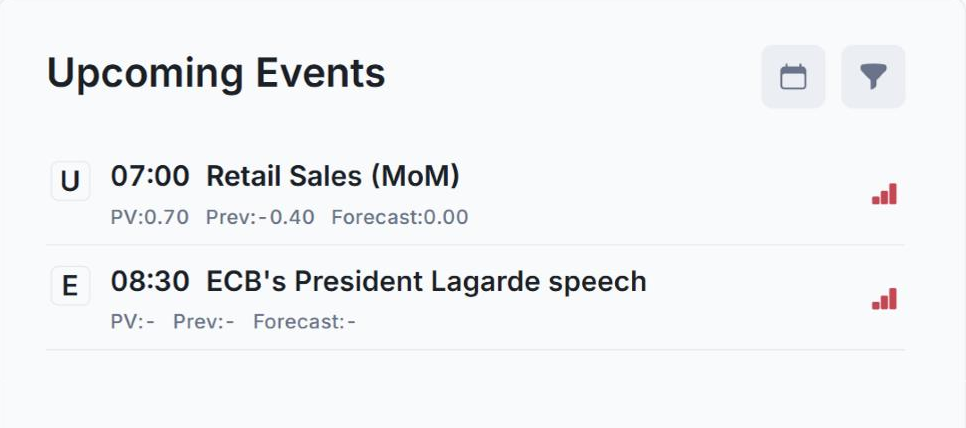
- (1) Time and event: when the event takes place and what it is. Times use the platform’s time zone, shown next to the clock above the chart on the Trade screen (for example, UTC +0).
- (2) PV, Prev and Forecast:
- PV: the actual figure that was published. It shows “-” until the figure is released.
- Prev: the figure from the previous release.
- Forecast: the figure analysts expect.
- (3) Impact: the bars show how strongly the event is expected to move the markets. Point at the bars to see the level, for example High impact.
When the actual figure is very different from the forecast, prices can move sharply. Spreads can widen and higher margin requirements may apply around important news, so check the calendar before you trade. See Margin.
See the events for another day
Click the calendar icon next to Upcoming Events.
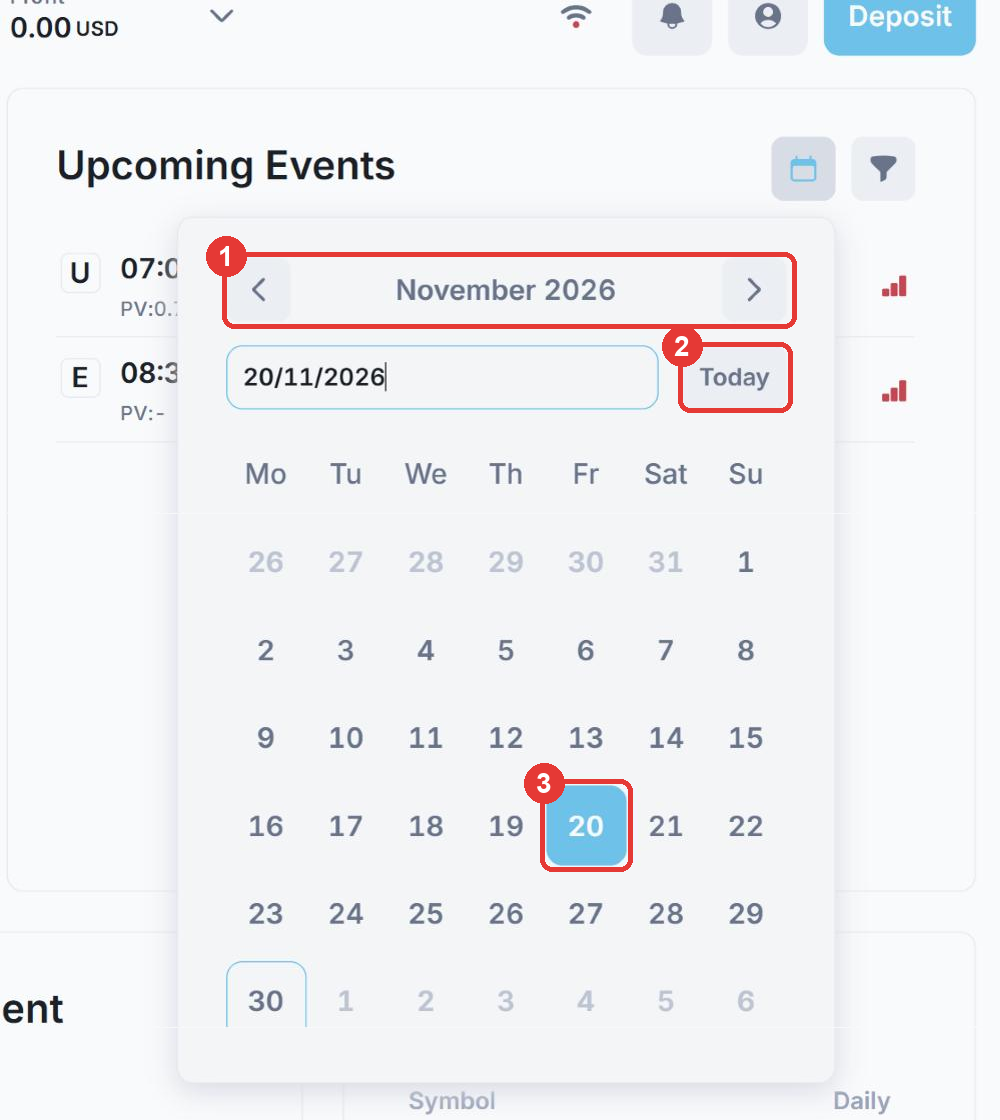
- (1) Use the arrows to move to the previous or next month.
- (2) Click Today to go back to today’s events.
- (3) Click a day to see the events for that day. You can also type a date in the box.
Filter the calendar
Click the filter (funnel) icon next to the calendar icon to choose which events are shown.
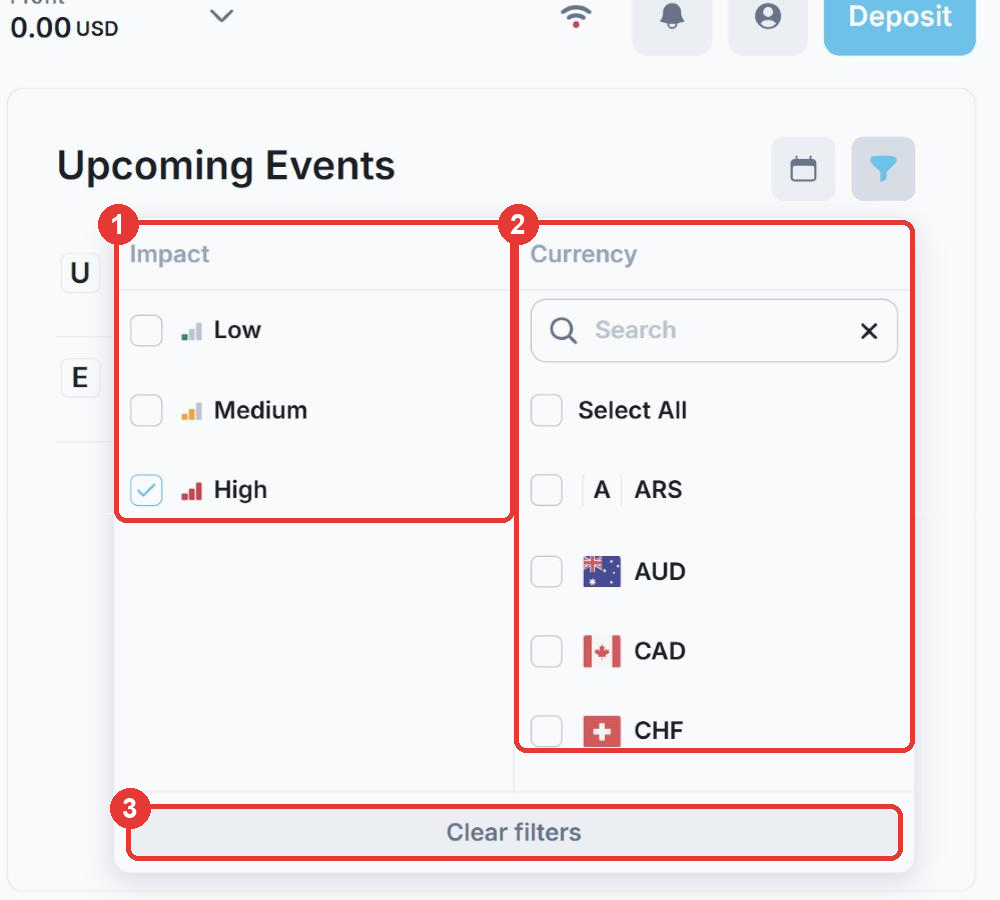
- (1) Impact: tick Low, Medium and/or High to show only events with that expected impact. In the example above, only High is ticked, so only the most important events are shown.
- (2) Currency: tick the currencies you trade, for example USD and EUR, to see only the events that affect them. Use Search to find a currency quickly, or tick Select All.
- (3) Clear filters: remove all filters and show every event again.
Tip: if the calendar shows only a few events, check the filter. You may have only one impact level or a few currencies ticked.
You can also see the calendar in the Calendar tab of the panel at the bottom left of the Trade screen, and on our website’s Economic Calendar page.
4. Trending
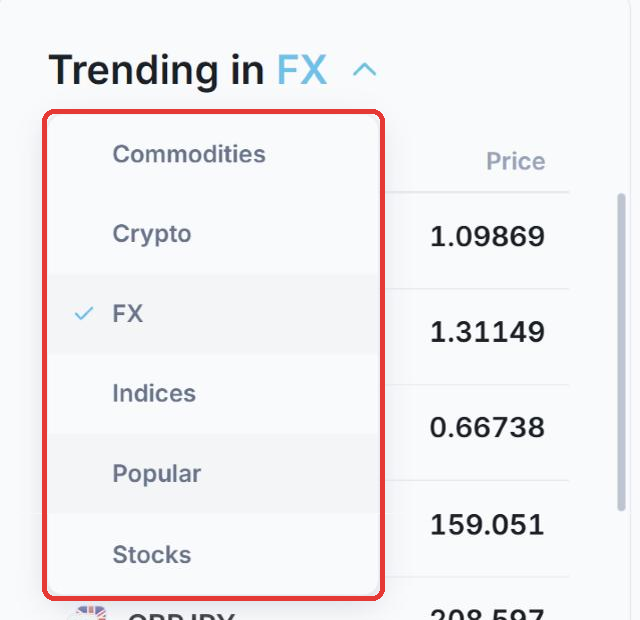
The Trending panel lists the most popular instruments with their current price. Click the asset class next to the title to switch between Commodities, Crypto, FX, Indices, Popular and Stocks.
5. Market Sentiment
Market Sentiment shows how traders are positioned on each instrument. The red figure is the share of traders who are selling and the green figure is the share who are buying. In this example, 47% are selling XAUUSD (gold) and 53% are buying.
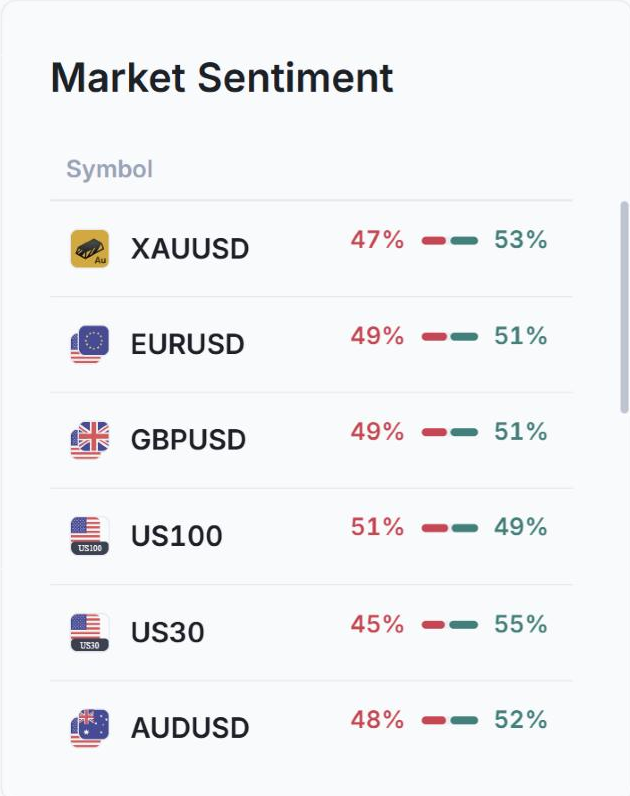
Sentiment shows what other traders are doing. It is not a trading signal, and the majority is not always right.
6. Top movers
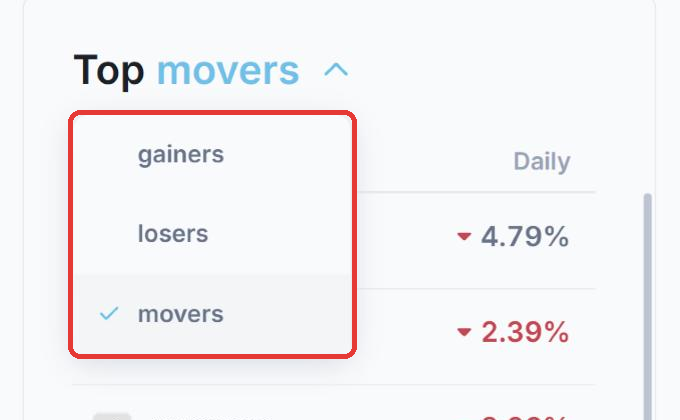
Top movers lists the instruments with the biggest price change today. Click the word next to Top to switch between:
- gainers: the biggest rises.
- losers: the biggest falls.
- movers: the biggest moves in either direction.
Important
The information in the Explore tab is for information only and is not investment advice. Trading futures, forex, CFDs and stocks carries a high level of risk, and past performance does not guarantee future results. Always make your own trading decisions.